Rotate a Basic auth access key by generating a replacement, updating your integration, verifying it works, and then revoking the old key. You can keep up to two valid keys at the same time, so generating a replacement does not interrupt requests using the old key.
Use OAuth when your integration supports it. This guide is for integrations that require Basic auth; see Direct API Access and Authentication for the available authentication methods.
- Sign in to the Merchant Dashboard Integrations page with permission to change Direct API settings. Your merchant must have Direct API access.
- Open the Direct API section and confirm Enable Basic auth is on. Keep it enabled throughout the rotation.
- Identify every application, worker, scheduled job, and environment using the old key. Arrange access to their secret stores and deployment settings.
- Check that there is an available key slot. If two keys are already valid, identify a key that is no longer used before revoking it to free a slot. Do not revoke a key that still serves an integration.
For Basic auth, Client ID is your merchant ID (the username), and Client Secret is the access key (the password). The Client ID stays the same when you rotate a key. These are not OAuth credentials, and you do not select OAuth scopes for Basic auth keys.
Screenshots below show the actual dashboard components with fictional example credentials.
- Click Generate Basic auth access key.
- Enter a recognizable name, such as
Warehouse API. - Optionally select an Expiration date. A selected date expires at 00:00 UTC at the start of that day, not at the end. Choose a date that leaves enough time for the cutover. Leaving the date blank makes the key valid until revoked.
- Click Save.
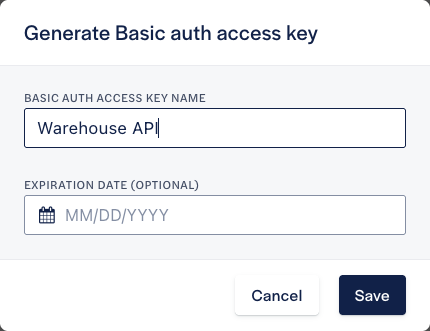
The existing key continues working. An older key may appear as Original credential in the list. You do not need to retrieve its secret to generate a replacement. New merchants start without an automatically generated Basic auth key; generate a first key before configuring an integration.
In Save your new Basic auth access key, copy the Client ID and Client Secret into your integration's secure secret store. Use the secret field's copy control; the eye control lets you reveal it when needed.
The new secret is available only in this confirmation. Once you close it, neither you nor Resolve can retrieve it again. Do not put it in source control, screenshots, support messages, or logs. Close the confirmation only after saving it securely.
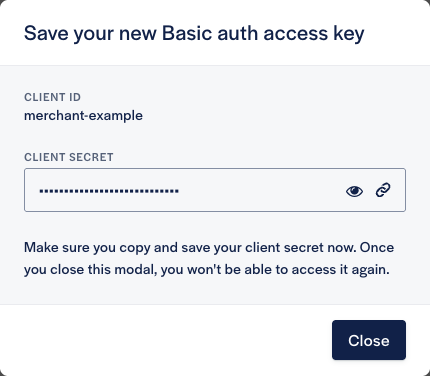
If you close the confirmation without saving the secret, revoke that unused new key and generate another. Revoking the unused replacement leaves the old key working.
- Replace the old password/Client Secret in each integration's secret store. Keep the existing username/Client ID.
- Deploy or restart applications and workers as required for them to load the replacement.
- Make a normal API request using the replacement and confirm it succeeds. Check each consumer, including jobs that run infrequently.
- Check your application's request/error logs for authentication failures. Keep secrets and Authorization headers out of logs.
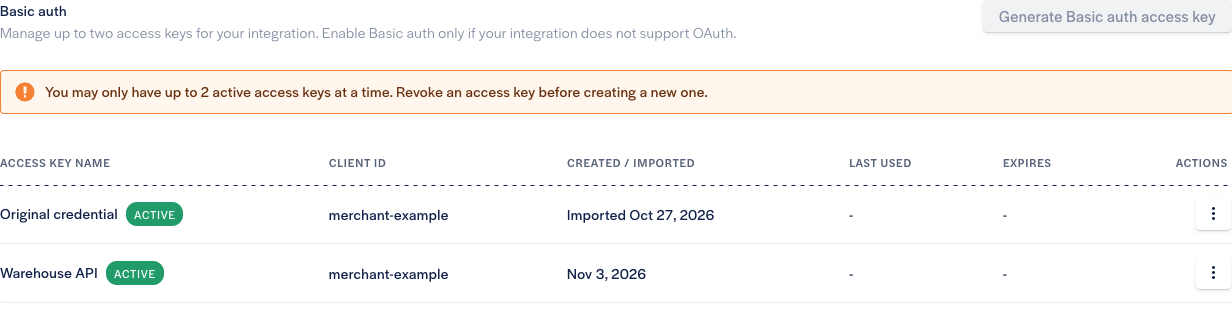
The dashboard's Last used column can help identify activity, but a timestamp alone does not prove every consumer has switched. Usage timestamps are recorded at most once per minute, and the displayed list updates when you load the page or submit a key-management action. Reload the page to see updated metadata.
Do not revoke the old key until all consumers have successfully switched to the replacement.
- In the old key's row, open the three-dot actions menu and select Revoke.
- Check that you selected the old key, not the replacement.
- Read the impact warning, then click Revoke access key.
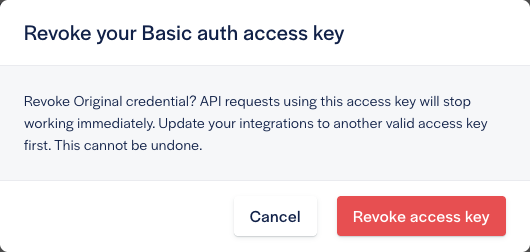
Revocation takes effect immediately and cannot be undone. Subsequent requests using the old key fail authentication; the replacement remains valid. The Client ID remains visible in the table.
Confirm your integration still succeeds with the replacement after revocation. If you have a controlled test using the old key, it should now receive 401 Unauthorized.
Existing Shopify and BigCommerce connections remain linked after revocation. Establishing a new connection requires a valid credential.
Open the revoked key's three-dot menu, select Delete, and confirm Delete access key. Deleting it does not restore access or undo revocation. An expired key must also be revoked before it can be deleted.
| Symptom | What to check |
|---|---|
| Generate is unavailable | Check Direct API permissions and the two-valid-key limit. |
The replacement receives 401 Unauthorized | Check the merchant Client ID, the saved secret, Basic auth enablement, and whether the key has expired or been revoked. |
| A consumer fails after revocation | Update that consumer to the saved replacement secret. The old key cannot be reactivated. |
| The replacement secret was lost | Revoke the unusable key and generate another; a closed confirmation cannot be reopened to recover its secret. |
| There is no expiration date | - in the Expires column means the key has no scheduled expiration. It remains valid until revoked. |