After integrating Resolve, your BigCommerce shop will:
- Offer Net Terms as a payment option on the checkout page. This payment option also surfaces a link to your buyer application.
- Process Resolve payments in your order management system.
Before beginning integration, you should review the following:
- Resolve BigCommerce integration (BigCommerce marketplace listing)
- The transaction flow when buying with Resolve
- Your current checkout process to understand how Resolve will affect operations and customer experience
- If you have enabled BigCommerce's Multi-Storefront feature, see multi-storefront-configuration for additional configuration details
Note: The integration will not operate with Resolve sandbox accounts.
Install the extensions and follow the steps in 5. Test your integration before going live.
- Retrieve keys
- Install the extension for BigCommerce
- Link your BigCommerce account to your Resolve Pay account
- Make changes to your BigCommerce store
- Test your integration
- Go live with Resolve
Your Merchant ID and Secret Key are available in your merchant dashboard. Just go to the Settings tab then choose "Integrations" from the sub-tabs.
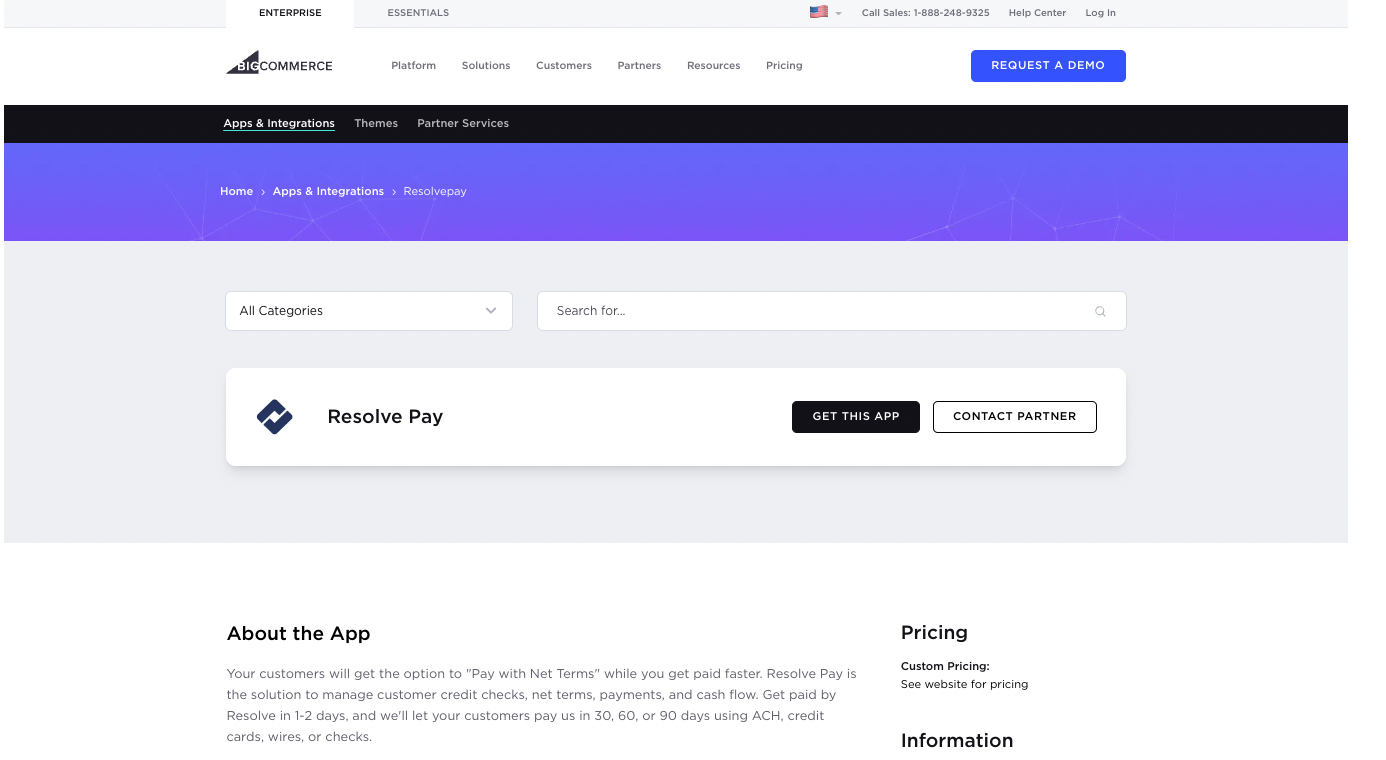
Install the Resolve for BigCommerce app via the BigCommerce app store.
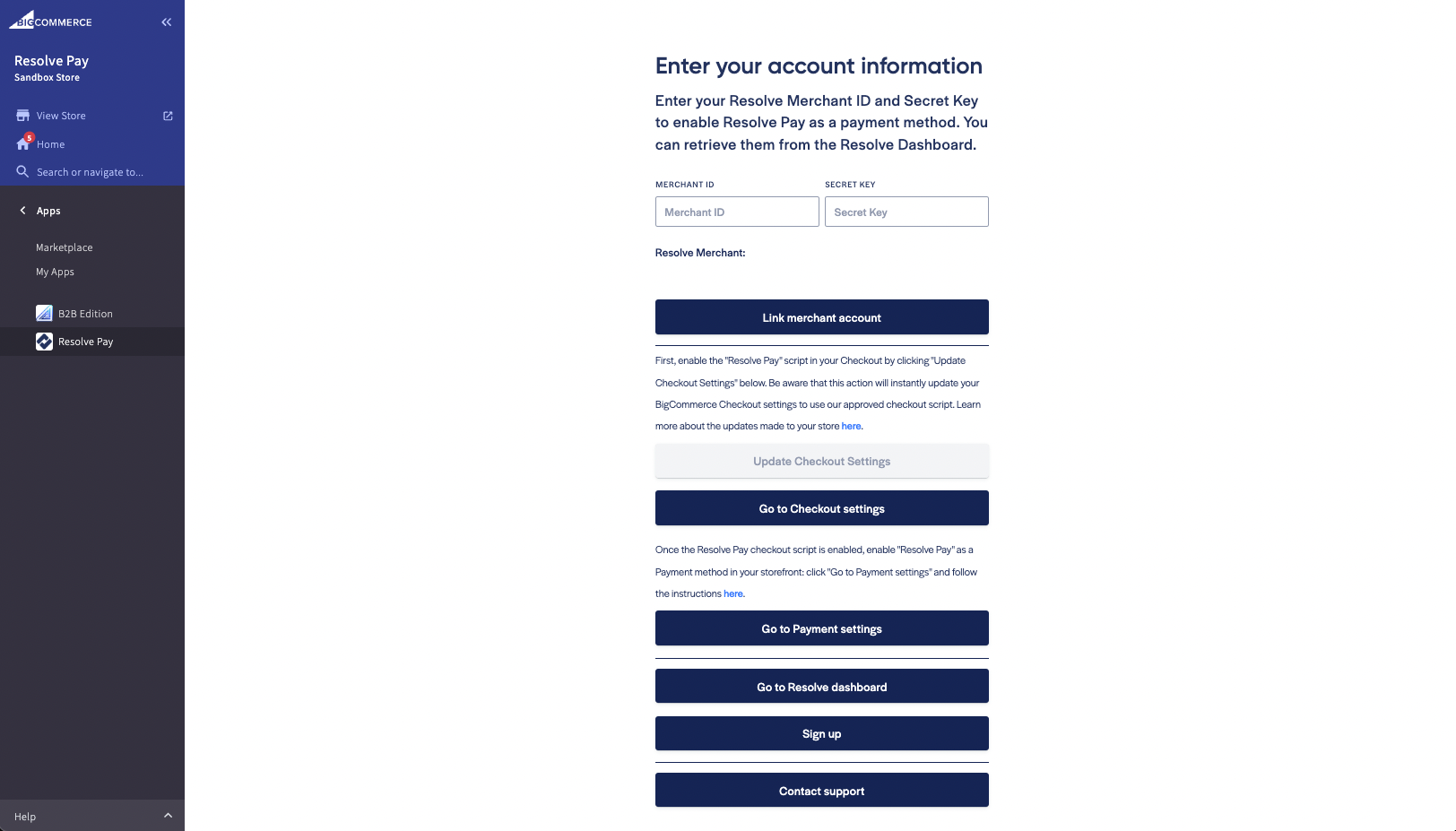
You'll need to link your BigCommerce shop to your Resolve account, from within your BigCommerce dashboard. Navigate to the Resolve Pay app settings and enter your Merchant ID and Secret Key.
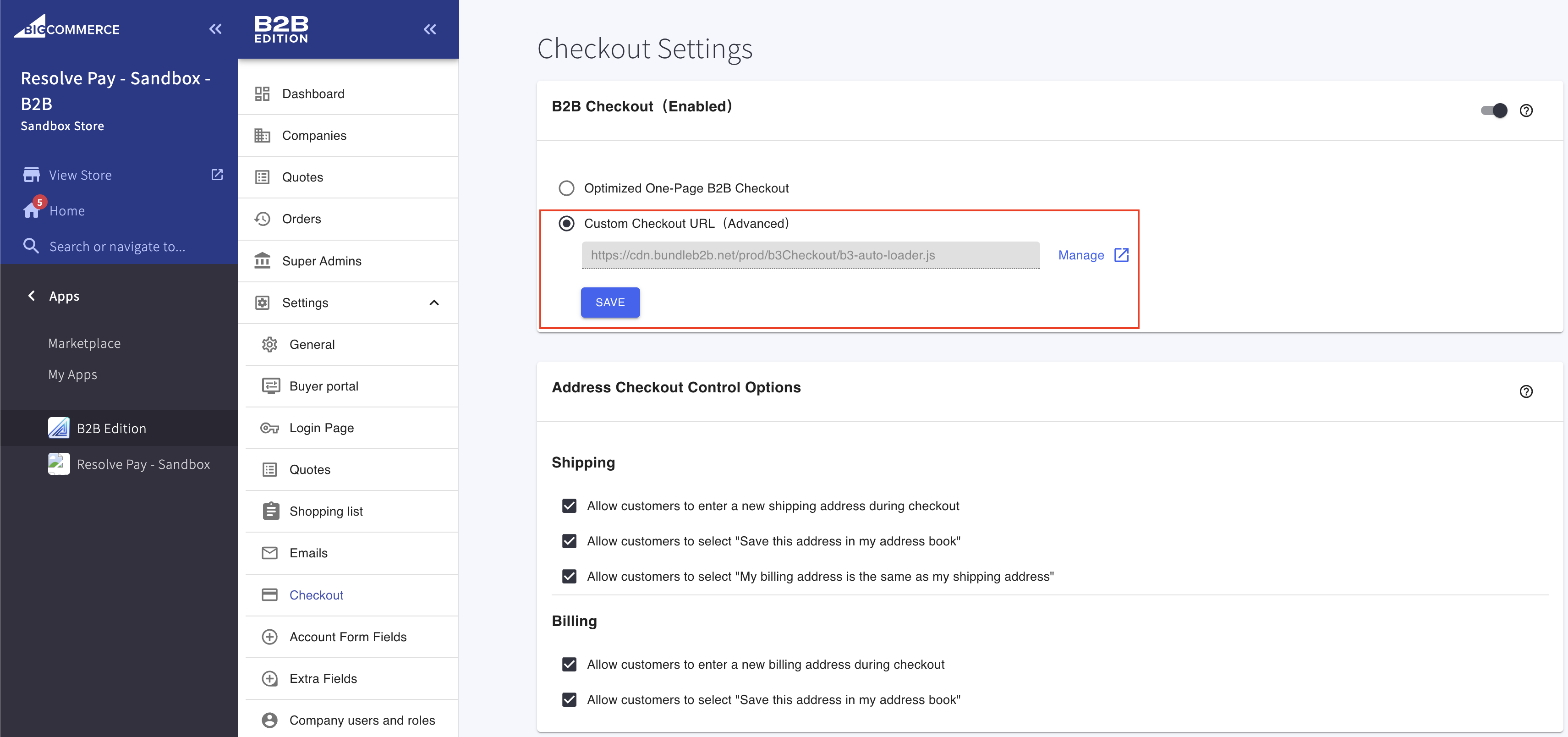
You'll need to make two changes to your store's BigCommerce store settings: (a) Update Checkout settings and (b) Update Payment settings (enable 'cash on delivery').
Navigate to the B2B Edition App and select Settings > Checkout. Under the B2B Checkout section, select Custom Checkout URL > Save > Yes, Turn on Override. Once the changes are applied, return to the Resolve extension.
If you are installing the extension on a BigCommerce B2B Edition store, then select the Enable B2B Edition compatibility toggle. If you are not using B2B Edition, ensure that the toggle is not selected.
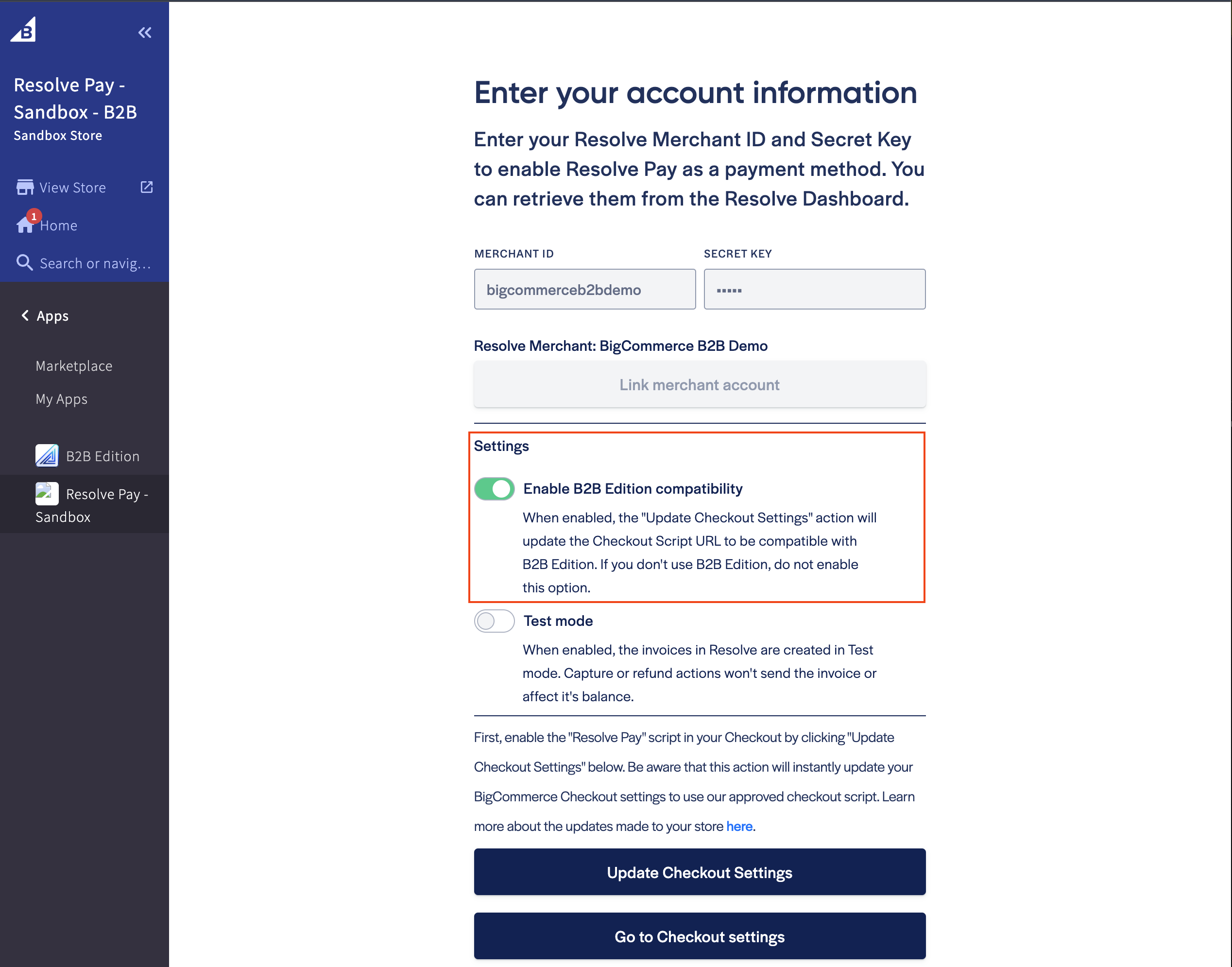
Warning: Selecting the Update Checkout Settings button will override a custom checkout script that is applied to your store.
Click on Update Checkout settings. Be aware that this action will instantly update your BigCommerce Checkout settings to use our approved checkout script.
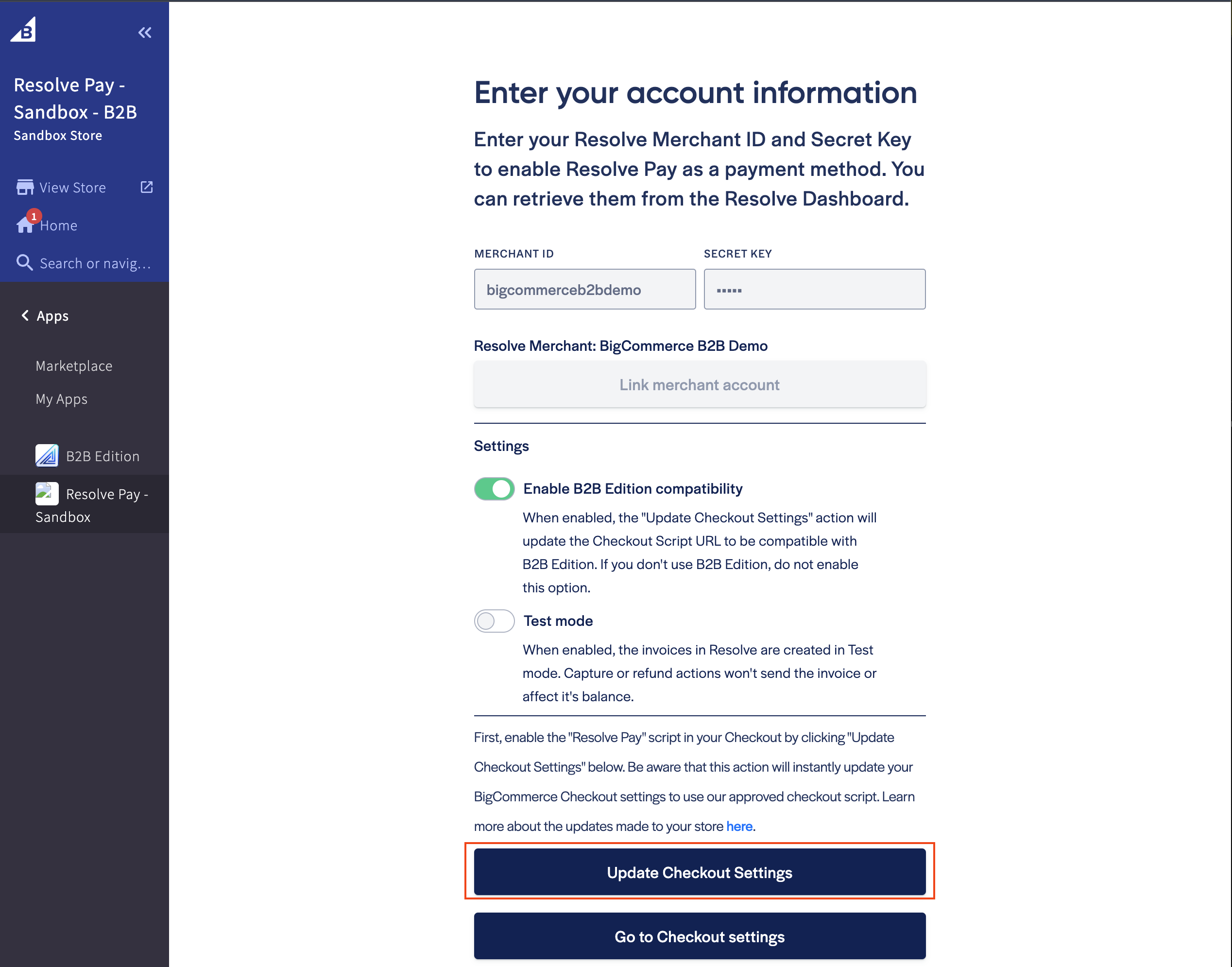
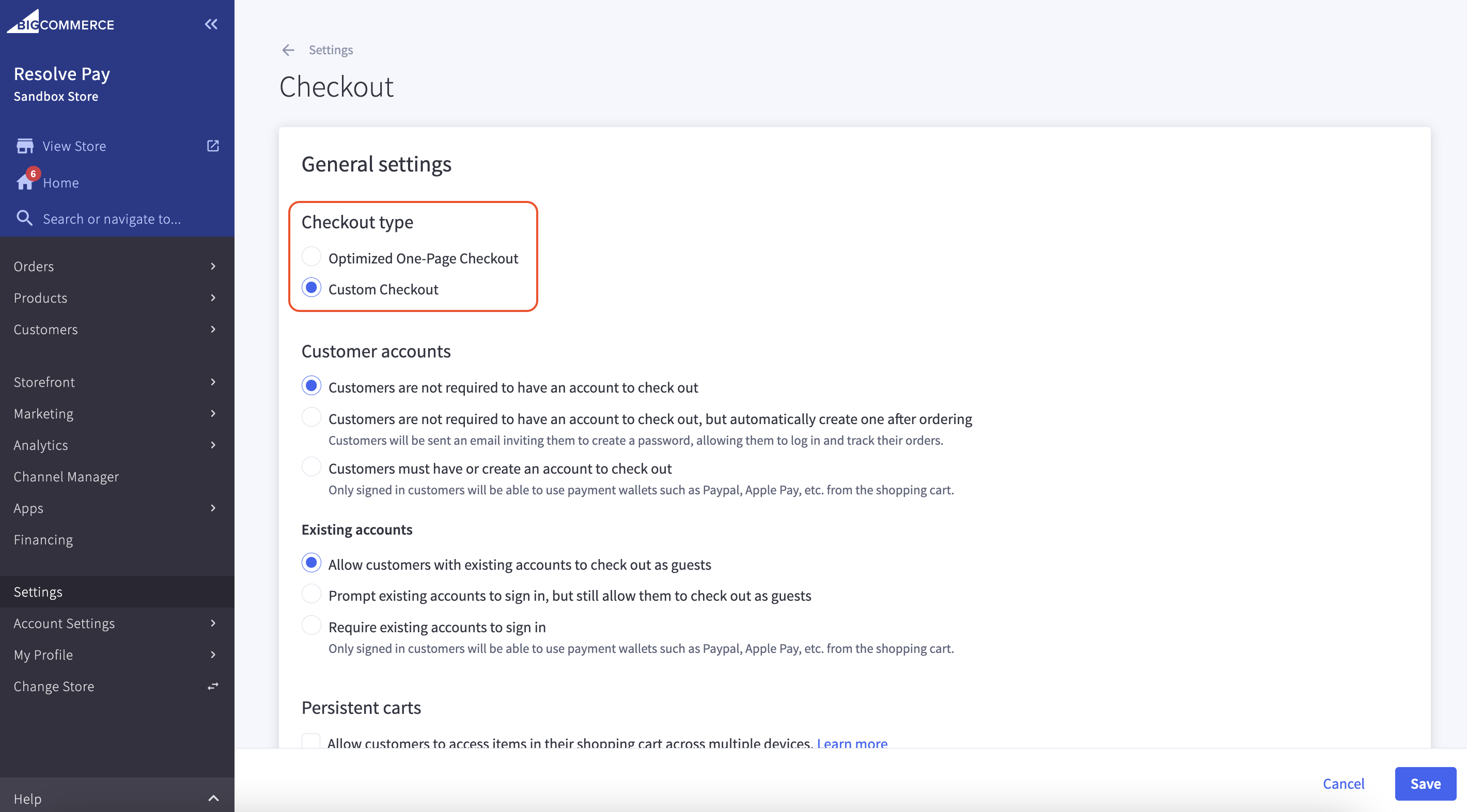
Verify that the Checkout type is set to Custom Checkout and the URLs match the following:
- Standard:
https://bc.resolvepay.com/auto-loader.js - B2B Edition:
https://bcb2b.resolvepay.com/auto-loader-1.0.0.js
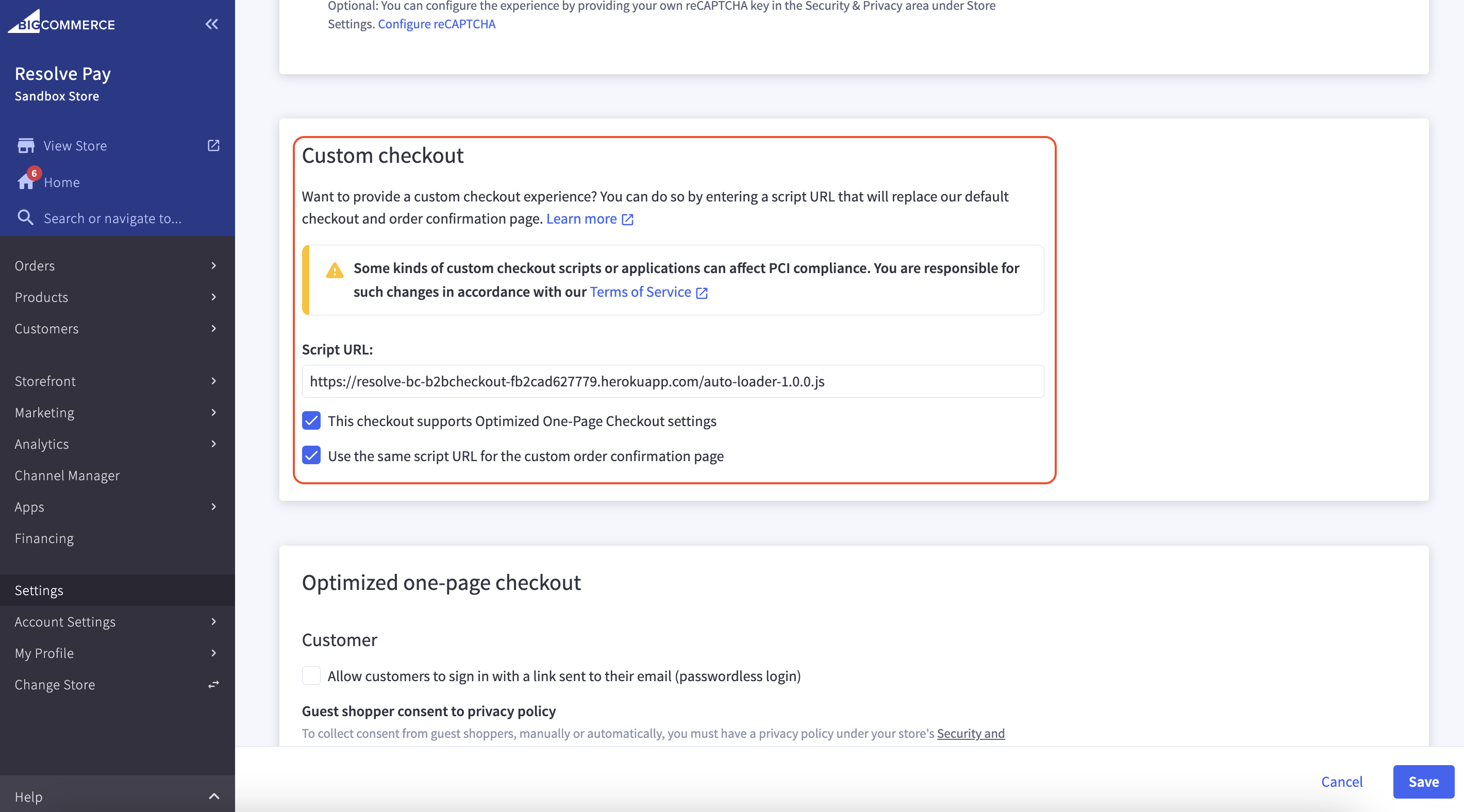
Note: Multi-Storefront configuration requires additional steps — see Multi-Storefront Configuration.
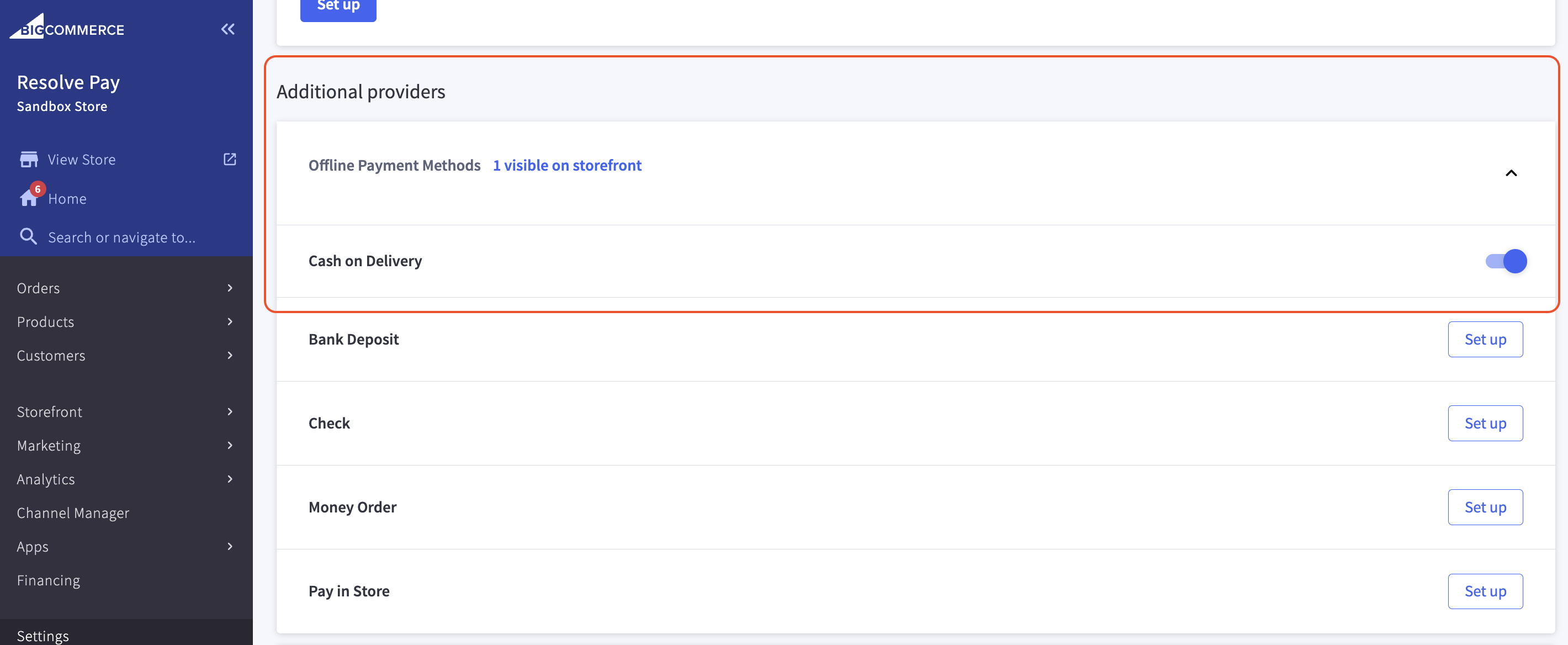
Navigate to Store Setup > Payments.
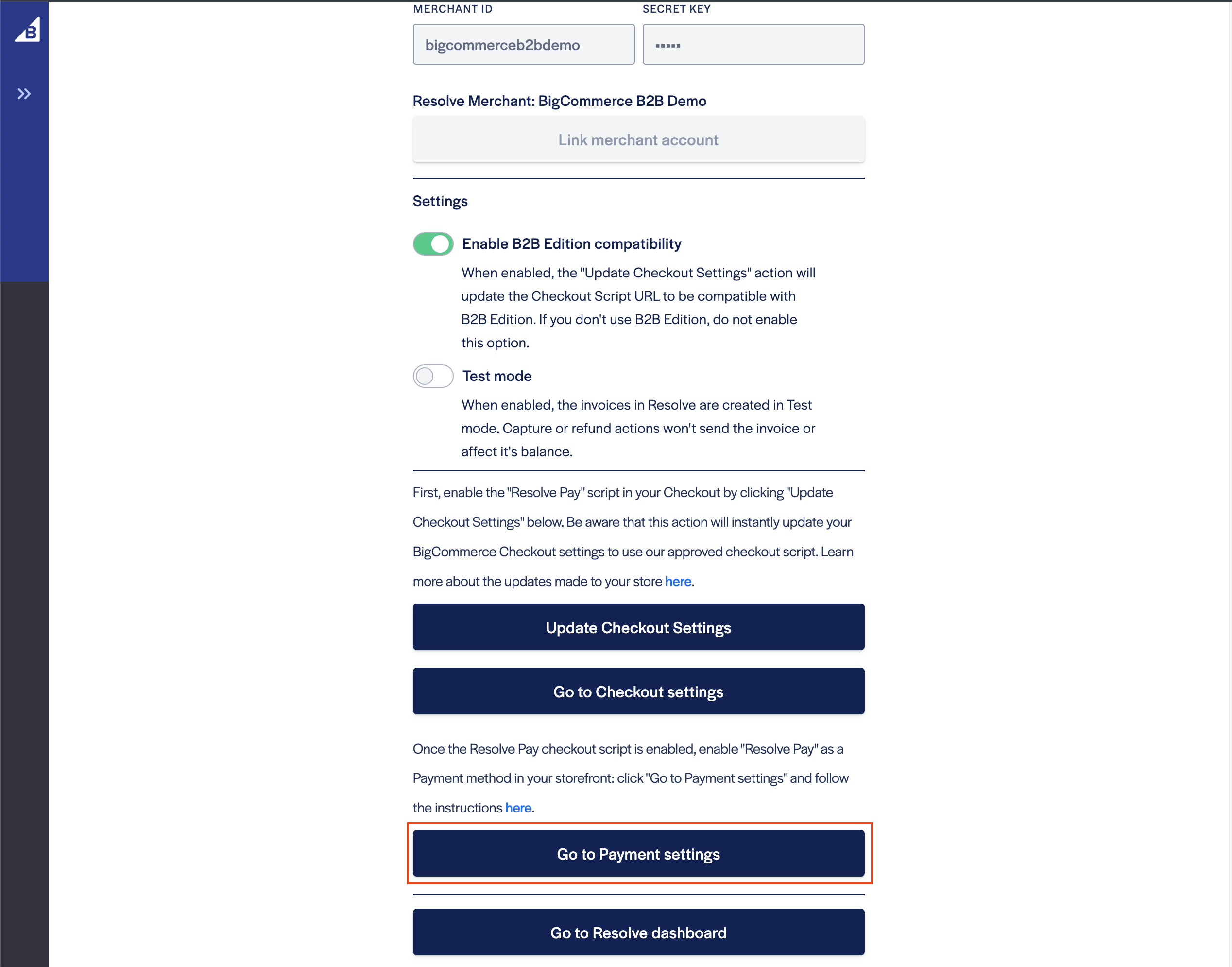
Scroll down to the Additional providers section and open the Offline Payment Methods section. Enable Cash on Delivery.
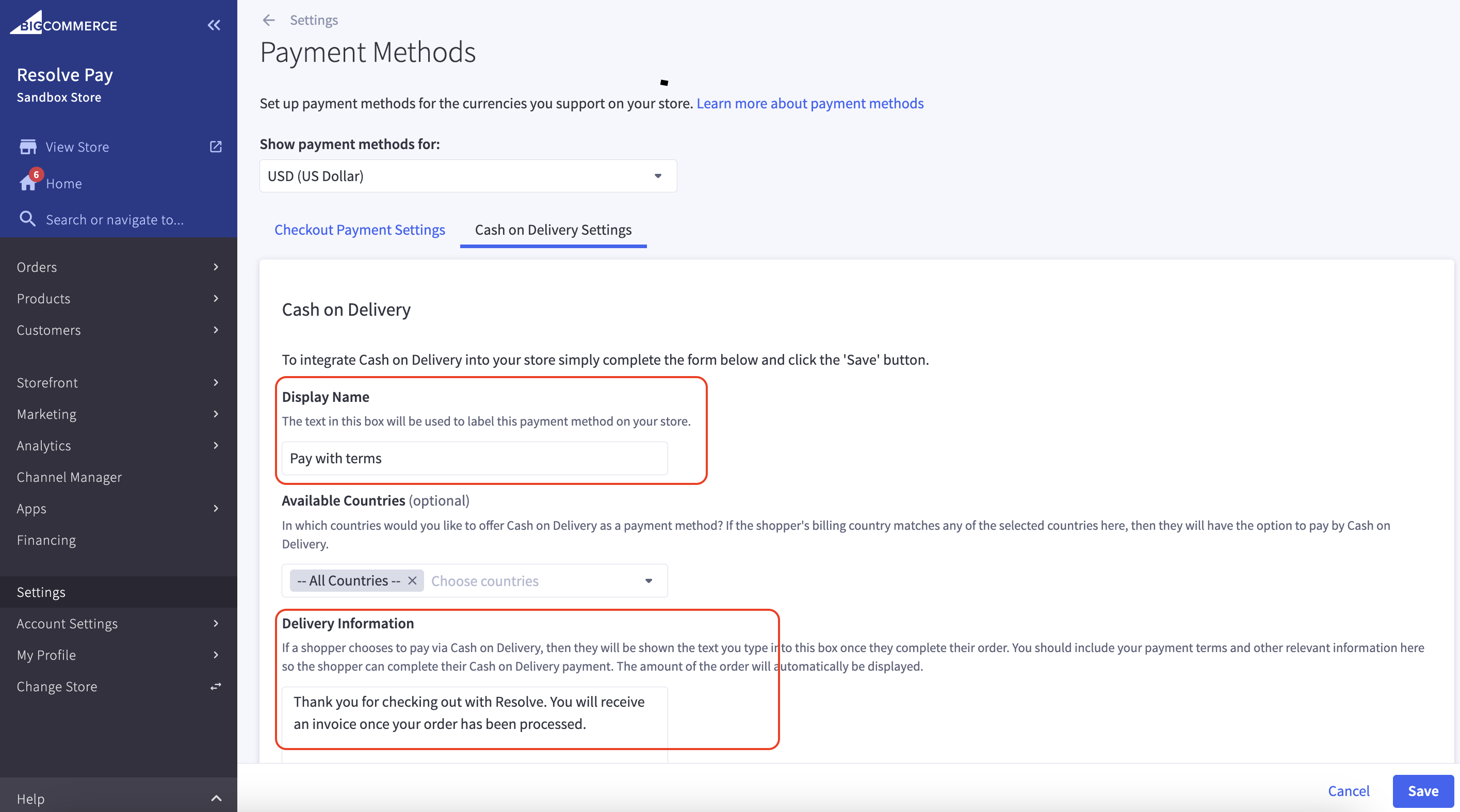
Change the Display Name to "Pay with terms" and update Delivery Information to convey next steps to buyers.
Connect with your Resolve Account Manager to access a test buyer (ie. test buyer credentials) associated with your merchant account.
- Enable Test mode in the Resolve Pay extension settings.
- Add items to your cart and proceed to checkout.
- Select Pay with net terms as the payment option.
- Complete checkout using the test buyer credentials.
- Verify order confirmation and that the order was created in Shopify.
- View the order in the Resolve dashboard.
- Optionally capture the order.
Warning: Test buyers will be configured for a 0% advance, so they will not trigger money movements in Resolve.
If you've enabled test mode in the extension settings, ensure this is disabled prior to going live. Let your buyers know about your new 'Pay with net terms' option and educate them on Resolve Pay.